Showing posts with label blogger. Show all posts

Monday, 20 May 2013

Photo editing

It seems some people are having a lot of trouble editing photos in Blogger. So I think I might run through a few options to see what you can do.

First of all, there are several ways to upload a photo to Blogger. Most of them you get to by clicking on the little picture icon:
photo editing But not all.......

If you understand html there are other options. But for now, let's look at what happens when you click the little picture.  It offers upload options:
From this blog
From Picasa Web Albums
From your phone
From your webcam
From a URL

Now, some of you will have realised that 'From this blog' and 'From Picasa Web Albums' creates a problem after a while. Blogger limits the amount of space you can have to store your photos and you have to pay for more.
(Unless you've been clever and shrunk all your photos in the first place. I didn't - so I ran out of space pretty quickly and I'm too tight to pay for more.)
You need an app to use your phone. I shall assume if you are capable of uploading an app, you are capable of uploading a photo!
Ditto webcam.
From a URL can be very useful but BEWARE of copyright infringements.

If you have a website elsewhere (like I do) you can use the URL to insert a link.  A URL will look something like this:
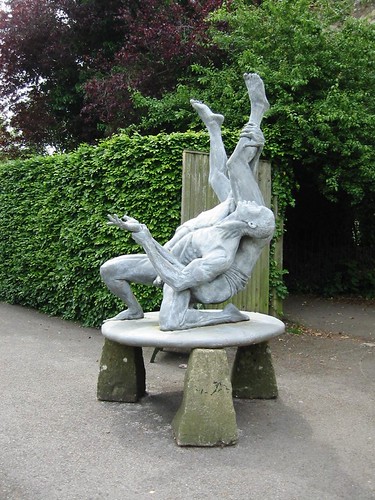
http://www.historyanorak.co.uk/history/TheNewHistoryanorak/art_and_sculpture/Sculpture/rank_broadley/pix/Rankbroadley_malmsbury_wrestlers_1.jpg
and if you paste it into your text, Blogger will automatically make a link to it.
If you paste it into the space given when you use the 'From a URL' option (as above) you'll get this:

Note.  I took the photo. I own the copyright. I also own the rights to the website where it appears. If you don't fulfil those conditions GET PERMISSION before you use the picture.

There is another option.  That photo also appears on (one of) my Flickr site(s).  Flickr can give you a URL for the picture but it can also give you (under the 'share' option) HTML or BBCode.  That looks like this:
<a href="http://www.flickr.com/photos/historyanorak/161785585/" title="Malmesbury Abbey House - The Wrestlers by historyanorak, on Flickr"><img src="http://farm1.staticflickr.com/78/161785585_11948a0602.jpg" width="375" height="500" alt="Malmesbury Abbey House - The Wrestlers"></a>

But to use that you need to be in the HTML option at top left of the Blogger composer.  If you don't understand HTML, avoid using it.  (Or look here)

This post has gone on quite long enough.  Come back to the next post for stage 2.

Tuesday, 9 October 2012

Those pesky Blogger changes

Seems like a few of you are still having trouble navigating around the new Blogger interface.  I agree, it's not as user friendly as the old one, but we have to put up with it now it's been forced on us.

I'm going to start with a simple lesson that I hope will be useful to those of you still suffering.

Let's start by finding the dashboard.
They've removed the thing that takes you directly to it - so if you haven't got it bookmarked, go to someone else's blog, and there will be a link in the top right hand corner. (next to sign out)
Double click on that and you'll get to the Dashboard.

If (unlike me) you only have one blog, it will be relatively simple to find your way around.
The title of your blog will be at the top of the page and, to the right, you'll find an orange oblong with a square on it, a picture of two sheets of paper with a little triangle next to them, and another square that says View Blog.

Let's do the easy bit first.  View Blog will let you do that exactly. If you click on it, you'll get the front page of your blog.

The orange oblong is your "new post" link. If you want to write a new post, click that.

Editing a post
Which leaves us with the middle bit with the pages on it.
Click once on the little triangle to the right. That opens a pull down menu.
The bit you need to know for now is Posts.
Click once on Posts.
That will present you with a list of the posts you have written so far.
To Edit a post:
Find the title, click on the little square to the left. That will put a little tick into the square and open up four choices below the title: Edit View Share Delete
Click once on Edit.  Hey presto!  Your post is there, ready to edit.
Make your changes.   
To add labels, click on labels at the right hand side. Remember to separate them with commas. And click the oblong Done button when you're finished.
Now click the Update button (orange one at the top), and you're back to the list.
Tick the box, click View, and there's your updated post.

If this was useful, let me know. I'll sort out lesson two later.

Monday, 26 March 2012

That annoying word verification (and how to get rid of it)

There's been a lot of fuss about this horrible word verification thing that crops up on people's blogs.  Blogger makes it happen automatically and a lot of people don't like it but don't know how to change it.   I hope this helps.   Please note that I'm still on the old interface. If you've updated I don't know if this will work.

Go into your dashboard and choose the settings tab, then comments. Like this:
screen

Then scroll down to this bit:
screen

Take off comment moderation and choose 'no' for word verification.
Don't forget to hit the Save Settings button at the bottom.